


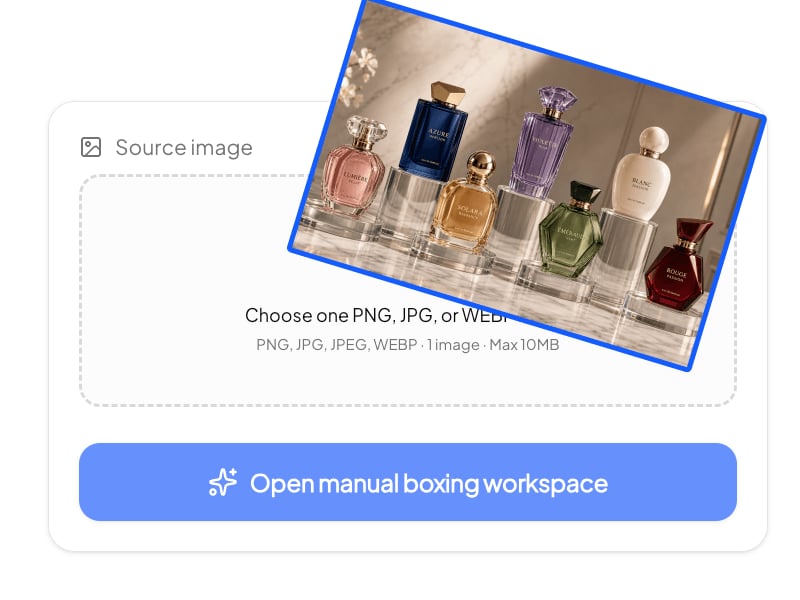
1
Upload your image and open the workspace.
Drop in a PNG, JPG, JPEG, or WEBP file (up to 10MB), then click Open manual boxing workspace to enter the editor.
Box every item you want, name them, and walk away with clean transparent PNGs or a layered PSD.
Upload one image, draw boxes around every object you want to keep, name each one, and get individual cutouts as transparent PNGs or layered PSD files.
Open a saved result to review your manual boxes, rename items, and choose what to cut out.
Browse generated cutout examples that match this tool's output style: isolated targets, clean edges, and a transparent product-ready result.
Generated example
Ottoman
Generated example
Coffee table
Generated example
Right cushion
Generated example
Floor lamp
Generated example
Cat
Generated example
Vase with pampas grass
No layers, no lasso tool, no Photoshop. Three steps from one image to clean cutouts.
Drop in a PNG, JPG, JPEG, or WEBP file (up to 10MB), then click Open manual boxing workspace to enter the editor.
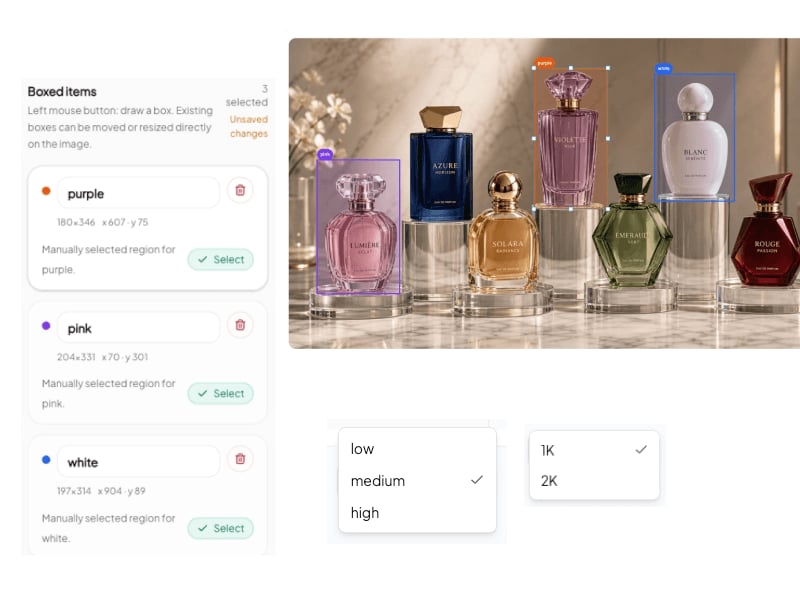
Drag with the left mouse button to draw a rough box around each object you want to cut out, and type a name for every box. Once you've framed everything, pick your resolution (1k or 2k), quality (Low, Medium, High), and output format (PNG or layered PSD), then click Generate cutouts.
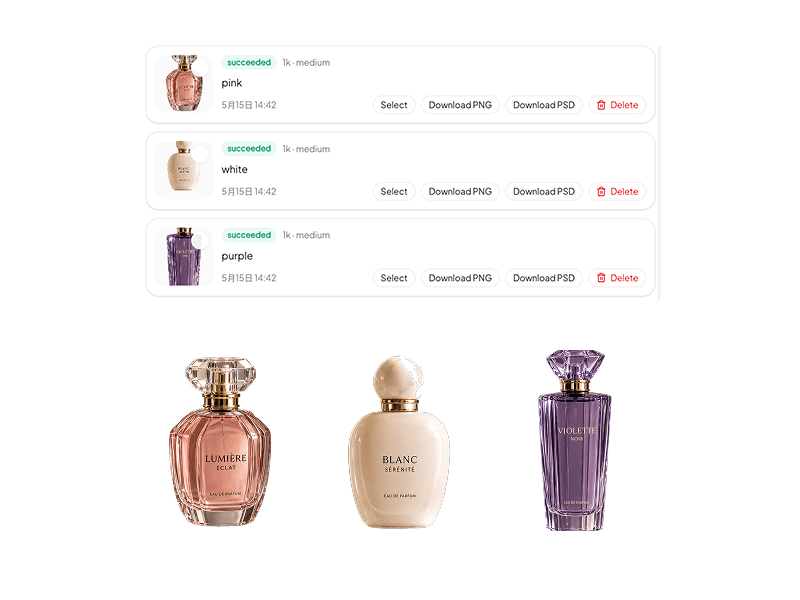
Wait about a minute for the AI to process each box. When the cutouts are ready, download them — individual transparent PNGs named after your labels, or a single layered PSD with every cutout as a named layer.
Most online cutout tools handle one object per image. This one handles as many as you want, in one go.
Box ten items, get ten transparent PNGs. There's no upper limit on how many objects you can extract from a single image — frame them all, click once, and walk away with a folder of individual cutouts.
Every bounding box you draw triggers a separate cutout job, isolated from the others. So overlapping objects, similar colors, or busy backgrounds don't bleed into each other — your floor lamp won't get confused with your coffee table.
Type a name into each box — "ottoman," "right cushion," "vase" — and the output PNG arrives already named. No more renaming "image_final_2.png" after the fact. Useful for product catalogs, design libraries, and anyone who hates digging through unnamed files.
Most cutout tools give you a folder of separate PNGs. We do that too — but you can also export the entire batch as a single layered PSD, with every cutout as its own named layer, ready to open in Photoshop, Affinity Photo, or Photopea. No re-importing, no manual layer naming, no rebuilding your composition.
The cutout model is trained to handle the edges that traditional tools fail on — hair strands, pet fur, pampas grass, transparent fabric, glass. Choose High quality output for catalog-grade results, or Medium for quick iterations.
A white cushion on a beige sofa, a glass vase against a bright window — the AI separates objects from backgrounds even when they share similar tones, where manual selection tools like magic wand and color range typically break down.
Runs entirely in your browser. No Photoshop, no GIMP, no app to download. The AI auto-detects object boundaries inside each box you draw, so you don't need to trace edges by hand. Most cutouts finish in under a minute.
Upload a flat-lay of an entire product line and extract every SKU as its own transparent PNG, named correctly, ready for your e-commerce store.
Pull individual elements out of mood boards, reference photos, or stock images and drop them straight into your design files.
Lift a logo cleanly off a screenshot, a packaging photo, or a presentation slide — even if the background isn't pure white.
The case manual tools can't handle: one image with five, ten, or twenty objects, each needing to be separated. Box them all once, name them once, generate once. No re-uploading, no repeating the cutout flow per object.
Extract every furniture piece from a room photo as a clean transparent cutout — useful for catalog layouts, 3D scene references, and editorial design.
Separate foreground and background elements from a single still, name them by depth layer, and feed them into your motion workflow.
Export your batch as a layered Photoshop file with every cutout already named and isolated on its own layer. Drop it in a Figma, Photoshop, or Affinity workflow without redoing setup work.
Try more focused AI image workflows. These are the latest tools except the one you are viewing now.

Turn photos into printable coloring pages, or colorize sketches, line art and storybook drawings with AI.

Create a custom family crest with your own shield, meaningful symbols, colors, initials and optional motto.

Turn a portrait into a recognizable flat paper-cut cartoon character, or create an original small-town character from text.
We use essential cookies to keep ChatImage working and optional analytics to understand how people use the product. You can review details in our Cookie Policy.